 Caption Float
Choose your view.
Switch between video with an active caption, captions on their own, or video and a transcript together.
Let the video follow your train of thought. Keep videos, captions, or both in an always-on-top window while you get on with your day.
For Chrome 130+ · No extension account needed
Switch between video with an active caption, captions on their own, or video and a transcript together.
Follow the current caption, jump to the previous or next line, or loop a line to listen again. Word highlighting is available when timing allows.
Adjust text size, organize captions into one sentence per line, and drag the video/transcript divider. The player remembers your layout and each channel’s selected mode.
YouTube captions and standard HTML5 text tracks, close at hand. Captions and Both layouts automatically turn on YouTube CC, keeping your selected language and auto-translation. When a full transcript is unavailable, the player can fall back to visible captions.
Get to know Caption Float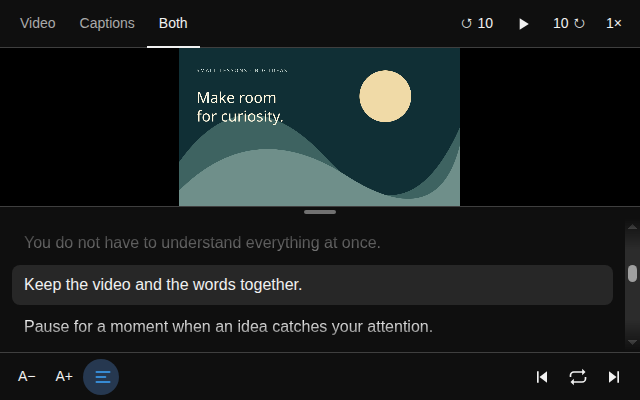
Use YouTube with captions or a page with a standard HTML5 video and text track.
Hover a YouTube video and choose Open floating window, or use Alt + Shift + P on a supported page.
Choose Video, Captions, or Both. Close the window or use the shortcut again to return the video to its page.
Click the extension icon to open the side panel, or right-click a YouTube page and choose Subscribe to this channel. Browse the latest videos from public RSS feeds and open one in a dedicated YouTube tab. Subscriptions use Chrome sync; caption processing stays on your device.
Protected videos, canvas players, cross-origin frames, and custom caption renderers may not work. Captions must be available on the source video.
Google, Google Meet, Google Drive, Chrome, and YouTube are trademarks of Google LLC. Caption Float is an independent product and is not endorsed by Google.